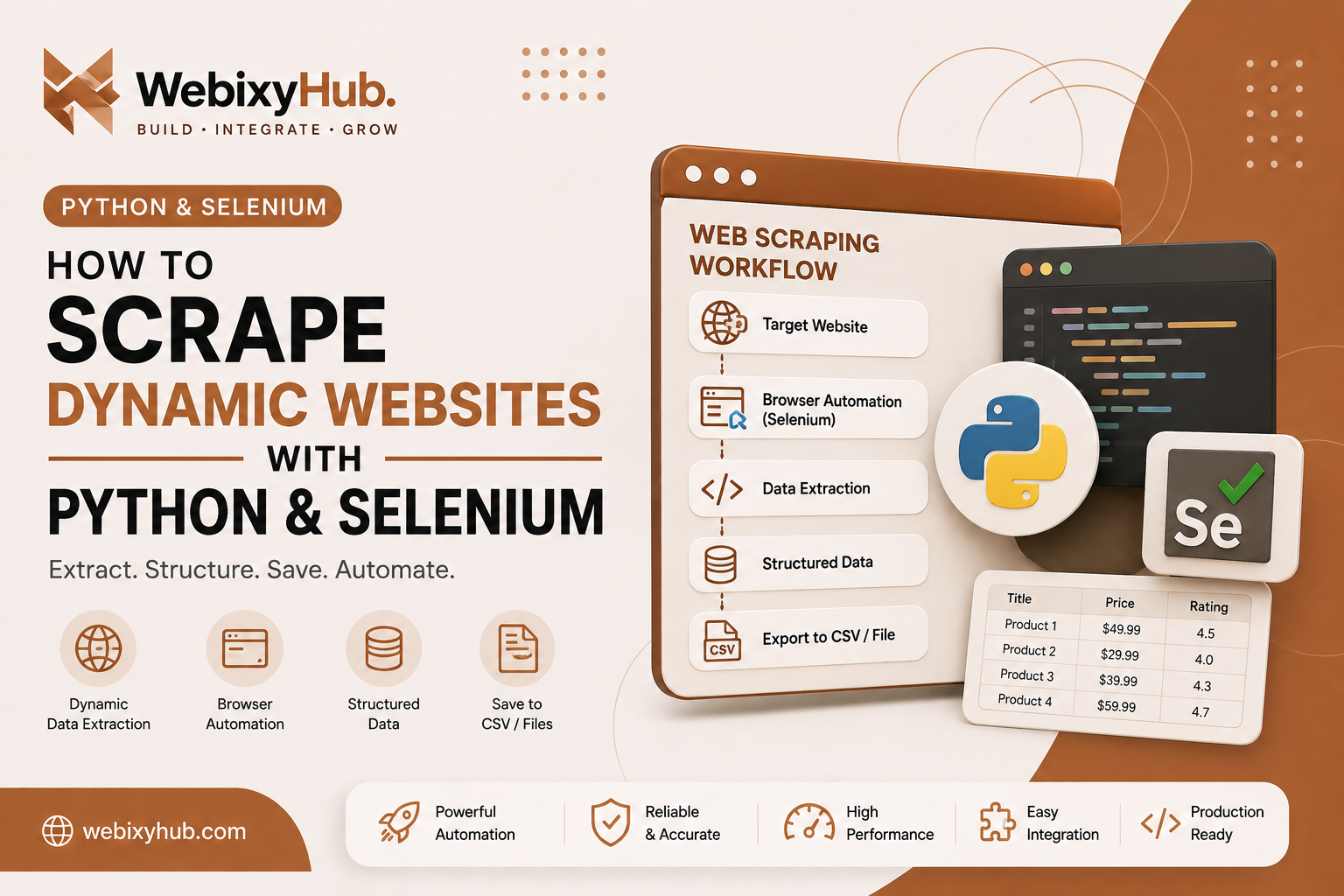
Web scraping becomes more challenging when the data you need is loaded by JavaScript instead of being available directly in the initial HTML.
A normal HTTP request may return the page source but still miss products, prices, tables, search results, or other dynamically rendered content.
This is where Python Selenium web scraping becomes useful.
Selenium controls a real browser, allowing your scraper to load a dynamic website, wait for JavaScript content, interact with buttons, scroll through pages, and then perform web data extraction from the rendered page.
In this tutorial, we'll build a practical Selenium web scraper with Python, extract website data, save the results to a CSV file, and cover the common errors you may encounter.
Only scrape data you are permitted to access. Respect a site's terms, access controls, robots policies where applicable, and avoid placing excessive load on websites.
What Is Selenium Web Scraping?
Selenium is primarily a browser automation framework.
Instead of simply downloading HTML, Selenium can launch and control browsers such as Chrome and interact with a website much like a real browser session.
This makes Selenium web scraping particularly useful when a website requires:
- JavaScript rendering
- scrolling before content appears
- clicking a Load More button
- pagination
- dropdown interaction
- dynamically appearing elements
- waiting for asynchronous content
The official Selenium documentation specifically notes that dynamically loaded applications can create timing problems because elements may not yet exist when the next automation command executes.
1. Create the Python Scraper Project
Create a new project folder:
selenium-web-scraper/Open the folder in your terminal and create a virtual environment.
Windows
python -m venv venvActivate it:
.\venv\Scripts\Activate.ps1Then install Selenium:
pip install seleniumCreate your main file:
scraper.pyOur basic structure is now:
selenium-web-scraper/│├── venv/└── scraper.py2. Launch Chrome with Selenium
Start with a simple Selenium browser session:
from selenium import webdriver

driver = webdriver.Chrome()

driver.get("https://example.com")

print(driver.title)

driver.quit()
Replace https://example.com with a website you are authorized to scrape.
The important part is:
driver.get(url)Unlike a basic HTTP scraper, the browser loads the page and executes its client-side JavaScript.
3. Run Selenium in Headless Mode
For an automated Python web scraper, you usually don't need to see the browser window.
Use headless Chrome:
from selenium import webdriver
from selenium.webdriver.chrome.options import Options

options = Options()
options.add_argument("--headless=new")
options.add_argument("--window-size=1920,1080")

driver = webdriver.Chrome(options=options)

driver.get("https://example.com")

print(driver.title)

driver.quit()
Headless mode is especially useful when your website data extraction script eventually runs unattended.
4. Find Elements on the Website
Suppose the page contains product cards like this:
<div class="product">
    <h2 class="title">Wireless Keyboard</h2>
    <span class="price">$49.99</span>
</div>
Selenium can find these elements using locators.
Import By:
from selenium.webdriver.common.by import ByThen:
products = driver.find_elements(By.CLASS_NAME, "product")Loop through them:
for product in products:
    title = product.find_element(By.CLASS_NAME, "title").text
    price = product.find_element(By.CLASS_NAME, "price").text

    print(title, price)
Your Selenium scraper is now converting rendered webpage elements into Python data.
5. The Most Important Part: Explicit Waits
One of the biggest mistakes in dynamic website scraping is assuming an element exists immediately after opening the page.
For example, this can fail:
driver.get(url)products = driver.find_elements(By.CLASS_NAME, "product")The page may have loaded, but JavaScript may still be fetching the products.
Avoid relying on:
time.sleep(10)everywhere.
Instead, use Selenium's WebDriverWait and Expected Conditions.
from selenium.webdriver.common.by import By
from selenium.webdriver.support.ui import WebDriverWait
from selenium.webdriver.support import expected_conditions as EC

wait = WebDriverWait(driver, 10)

products = wait.until(
    EC.presence_of_all_elements_located(
        (By.CLASS_NAME, "product")
    )
)
Selenium provides Expected Conditions for common states including element presence, visibility, clickability, staleness, and more.
This makes your Python Selenium scraper much more reliable.
6. Extract Structured Website Data
Instead of simply printing the results, create structured records.
scraped_data = []

for product in products:

    title = product.find_element(
        By.CLASS_NAME,
        "title"
    ).text.strip()

    price = product.find_element(
        By.CLASS_NAME,
        "price"
    ).text.strip()

    scraped_data.append({
        "title": title,
        "price": price
    })
Your data now looks conceptually like:
[ { "title": "Wireless Keyboard", "price": "$49.99" }, { "title": "Gaming Mouse", "price": "$29.99" }]This separation is important: browser automation collects the information; your Python code structures it for storage or later processing.
7. Save Scraped Website Data to CSV
A useful scraper should persist its output rather than leaving the information only in memory.
Python's built-in csv module is enough:
import csv

with open(
    "scraped_data.csv",
    "w",
    newline="",
    encoding="utf-8"
) as file:

    writer = csv.DictWriter(
        file,
        fieldnames=["title", "price"]
    )

    writer.writeheader()
    writer.writerows(scraped_data)
After execution, the project contains:
selenium-web-scraper/│├── scraper.py└── scraped_data.csvAnd the generated CSV might contain:
title,priceWireless Keyboard,$49.99Gaming Mouse,$29.99Laptop Stand,$39.99You have now created an automated web data extraction workflow:
Website ↓Selenium Browser ↓Dynamic Content ↓Element Extraction ↓Python Records ↓CSV File8. Save Data Continuously Instead of Waiting Until the End
For a larger web scraping automation job, storing everything only after the scraper finishes can be risky.
If the browser crashes after processing hundreds of records, unsaved results could be lost.
You can write each extracted record immediately:
import csv

with open(
    "scraped_data.csv",
    "w",
    newline="",
    encoding="utf-8"
) as file:

    writer = csv.DictWriter(
        file,
        fieldnames=["title", "price"]
    )

    writer.writeheader()

    for product in products:

        title = product.find_element(
            By.CLASS_NAME,
            "title"
        ).text.strip()

        price = product.find_element(
            By.CLASS_NAME,
            "price"
        ).text.strip()

        writer.writerow({
            "title": title,
            "price": price
        })

        file.flush()
This is particularly useful for long-running Python web scraping jobs.
9. Scrape Multiple Pages with Selenium
Many websites split their content across pages.
A simple pagination workflow might be:
Page 1
  ↓
Extract Data
  ↓
Next
  ↓
Page 2
  ↓
Extract Data
  ↓
Next
  ↓
...
For example:
while True:

    products = wait.until(
        EC.presence_of_all_elements_located(
            (By.CLASS_NAME, "product")
        )
    )

    for product in products:
        print(product.text)

    try:
        next_button = wait.until(
            EC.element_to_be_clickable(
                (By.CSS_SELECTOR, ".next-page")
            )
        )

        next_button.click()

    except Exception:
        break
In a real project, use more specific exception handling rather than treating every exception as the end of pagination.
10. Handle a “Load More” Button
Some dynamic websites don't use traditional pagination.
Instead:
Initial Results
      ↓
LOAD MORE
      ↓
Additional Results
      ↓
LOAD MORE
You can automate the button:
from selenium.common.exceptions import TimeoutException

while True:

    try:
        load_more = WebDriverWait(driver, 5).until(
            EC.element_to_be_clickable(
                (By.CSS_SELECTOR, ".load-more")
            )
        )

        load_more.click()

    except TimeoutException:
        break
This is one reason Selenium scraping is useful for JavaScript-heavy pages: it can interact with the rendered interface rather than only reading initial HTML.
11. Handle Infinite Scrolling
Some sites load more data when the user reaches the bottom.
A basic implementation is:
import time

last_height = driver.execute_script(
    "return document.body.scrollHeight"
)

while True:

    driver.execute_script(
        "window.scrollTo(0, document.body.scrollHeight);"
    )

    time.sleep(2)

    new_height = driver.execute_script(
        "return document.body.scrollHeight"
    )

    if new_height == last_height:
        break

    last_height = new_height
For production automation, prefer a condition tied to the actual page behavior instead of depending only on a fixed sleep.
12. Build the Complete Selenium Web Scraper
Here's a compact example combining the major concepts:
import csv

from selenium import webdriver
from selenium.webdriver.chrome.options import Options
from selenium.webdriver.common.by import By
from selenium.webdriver.support.ui import WebDriverWait
from selenium.webdriver.support import expected_conditions as EC


URL = "https://example.com"


options = Options()
options.add_argument("--headless=new")
options.add_argument("--window-size=1920,1080")


driver = webdriver.Chrome(options=options)

wait = WebDriverWait(driver, 10)


try:

    driver.get(URL)

    products = wait.until(
        EC.presence_of_all_elements_located(
            (By.CLASS_NAME, "product")
        )
    )

    with open(
        "scraped_data.csv",
        "w",
        newline="",
        encoding="utf-8"
    ) as file:

        writer = csv.DictWriter(
            file,
            fieldnames=["title", "price"]
        )

        writer.writeheader()

        for product in products:

            title = product.find_element(
                By.CLASS_NAME,
                "title"
            ).text.strip()

            price = product.find_element(
                By.CLASS_NAME,
                "price"
            ).text.strip()

            writer.writerow({
                "title": title,
                "price": price
            })

finally:

    driver.quit()
The finally block matters because the browser should be closed even if an extraction error occurs.
Common Selenium Web Scraping Errors and How to Fix Them
Error 1: NoSuchElementException
You may see:
selenium.common.exceptions.NoSuchElementExceptionThis means Selenium couldn't find the requested element.
Common reasons include:
- wrong selector
- content hasn't loaded yet
- element exists inside another container/frame
- website HTML changed
Instead of immediately searching:
element = driver.find_element(
    By.CSS_SELECTOR,
    ".product"
)
wait for it:
element = WebDriverWait(driver, 10).until(
    EC.presence_of_element_located(
        (By.CSS_SELECTOR, ".product")
    )
)
Error 2: TimeoutException
Example:
selenium.common.exceptions.TimeoutExceptionThis means the condition supplied to your wait wasn't satisfied within the configured timeout.
Check:
- selector correctness
- network/page loading
- whether the element actually appears
- whether authentication or another step is required
Don't simply increase every timeout to 60 seconds without understanding why the element is missing.
Error 3: StaleElementReferenceException
This often happens on dynamic pages.
You locate an element:
button = driver.find_element(...)The website then re-renders part of the DOM, making your saved Selenium reference stale.
A common solution is to locate the element again after the page changes:
button = wait.until(
    EC.element_to_be_clickable(
        (By.CSS_SELECTOR, ".next")
    )
)

button.click()
Selenium also provides a staleness_of Expected Condition when you specifically need to wait for an old element to detach from the DOM.
Error 4: ElementClickInterceptedException
Selenium found the button, but something else may be covering it.
Possible causes:
- cookie banner
- modal
- sticky header
- loading overlay
- animation
Wait until the target is clickable:
button = wait.until(
    EC.element_to_be_clickable(
        (By.CSS_SELECTOR, ".load-more")
    )
)

button.click()
Error 5: Scraper Returns Empty Data
This is very common when scraping dynamic websites.
If:
print(products)returns:
[]the content may not have rendered yet.
Use an explicit wait:
products = wait.until(
    EC.presence_of_all_elements_located(
        (By.CSS_SELECTOR, ".product")
    )
)
Selenium's documentation explains that a browser reaching its normal page-ready state does not necessarily mean JavaScript-created elements are already available.
Error 6: Chrome Opens and Immediately Closes
If an exception occurs before:
driver.quit()your automation may terminate unexpectedly.
Use:
try: driver.get(URL) # scraping logicfinally: driver.quit()For debugging, temporarily disable headless mode so you can watch what the browser is actually doing.
Selenium vs Requests for Web Scraping
Use a lightweight HTTP approach when the required information is already present in the returned HTML.
Use Selenium web scraping when the workflow genuinely requires browser behavior such as:
- JavaScript rendering
- clicking
- scrolling
- interactive pagination
- dynamic elements
- browser state
A real browser is more resource-intensive, so Selenium shouldn't automatically be your first choice for every scraper.
Best Practices for Python Selenium Scraping
A reliable scraper should use explicit waits rather than filling the codebase with arbitrary sleep() calls. Selenium specifically provides WebDriverWait and Expected Conditions to wait for states such as presence, visibility, and clickability.
Also keep extraction logic separate from file-writing logic where possible, close the browser reliably, validate extracted values before saving them, use stable selectors, log failures, and avoid sending unnecessary requests or interactions to the target website.
Most importantly, don't build scraping logic around bypassing authentication, CAPTCHAs, paywalls, access restrictions, or other controls.
Final Selenium Scraping Architecture
A production-oriented Python web scraping automation can be structured like this:
Target URL
    │
    ▼
Selenium WebDriver
    │
    ▼
Page Load
    │
    ▼
Explicit Wait
    │
    ▼
Dynamic Content
    │
    ▼
Element Selection
    │
    ▼
Data Extraction
    │
    ▼
Data Cleaning
    │
    ▼
Structured Records
    │
    ▼
CSV / Output File
This architecture separates browser automation from extraction and persistence, making the scraper easier to maintain as requirements grow.
Frequently Asked Questions
Can Selenium scrape dynamic websites?
Yes. Selenium controls a browser, so it can work with content rendered or changed by JavaScript. Correct waiting logic is important because dynamically generated elements may become available after the initial page load.
Is Python good for web scraping?
Yes. Python has a strong ecosystem for browser automation, parsing, data processing, and file generation, making it a practical choice for web data extraction projects.
Why does Selenium return no elements?
Usually the selector is incorrect or the element hasn't appeared yet. For dynamic content, use WebDriverWait with an appropriate Expected Condition instead of assuming the element is immediately available.
Should I use time.sleep() or WebDriverWait?
Prefer WebDriverWait for conditions you can observe. It waits for the required browser state rather than always delaying execution by a fixed number of seconds. Selenium provides Expected Conditions specifically for this purpose.
Can Selenium save scraped data to CSV?
Yes. Once Selenium extracts the values, Python's built-in csv module can write the records to a CSV file.
Can I scrape any website with Selenium?
Technically accessible content may still be subject to site rules, permissions, authentication, rate limits, copyright, privacy, or contractual restrictions. Selenium also doesn't guarantee that every site's structure or anti-automation behavior will work with a particular scraper.
Conclusion
Scraping dynamic websites with Python and Selenium is useful when traditional HTML scraping isn't enough.
Selenium can load JavaScript-rendered content, wait for dynamic elements, interact with pagination or Load More controls, and pass extracted information into a structured web data extraction pipeline.
The key to building a maintainable Selenium scraper isn't simply getting driver.find_element() to work. It's designing the complete workflow:
load → wait → interact → extract → validate → save → recover from errors.
Once those pieces are separated cleanly, the same foundation can be adapted for many legitimate browser-automation and data-extraction workflows.